Start with actions people can confuse
Opening a product and adding it to a comparison are different intentions, yet their controls may sit almost against each other on a phone. List these pairs before redesigning: search and close, previous and next, plus and minus. Review the pair, not just the appearance of each icon. When an ordinary tap requires careful aiming, revisit the layout instead of assuming that visitors will get used to it.
Small symbol, usable active area
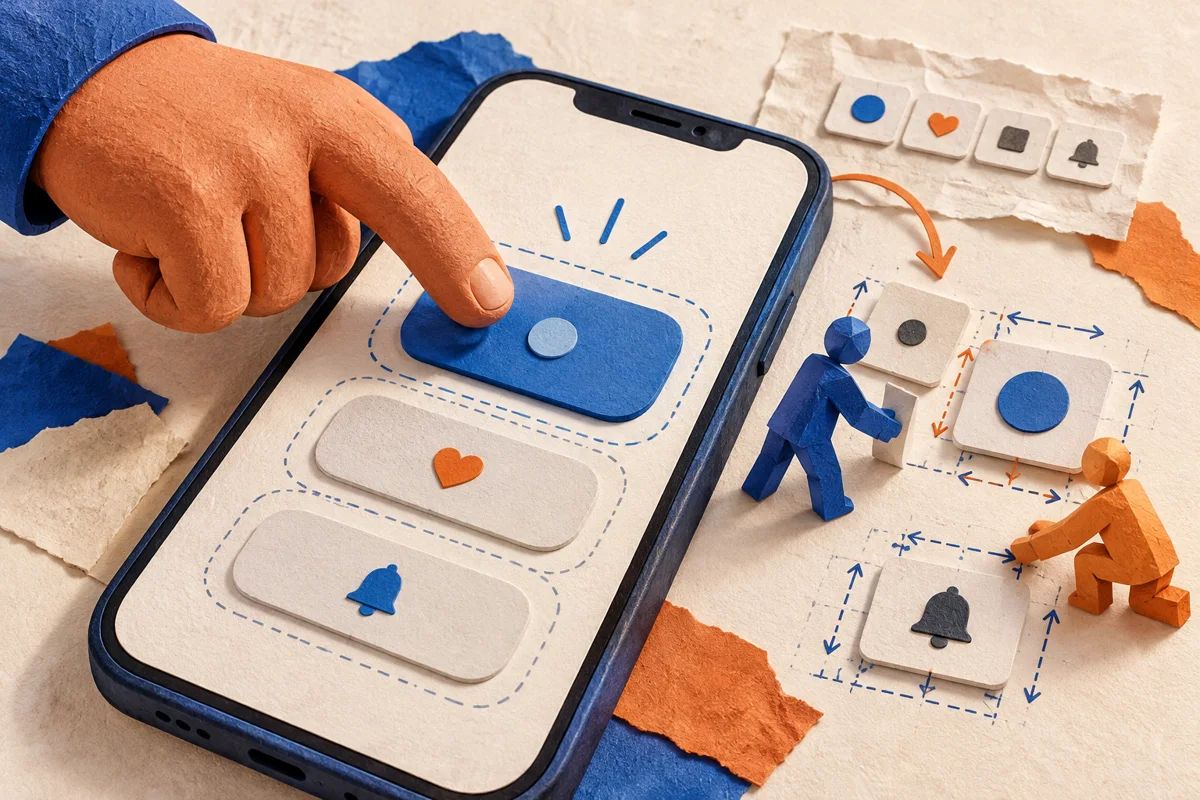
A compact icon can sit inside a more generous button. The surrounding space must actually respond to input, rather than merely look like padding. Adjacent active areas must not overlap. WCAG 2.2 criterion 2.5.8, level AA, specifies a 24 × 24 CSS-pixel minimum with defined exceptions. Treat this as a compliance threshold, not a universal recipe for a comfortable menu.
Simplify before enlarging
If the actions do not fit, do not keep shrinking them. Keep the main action visible and place infrequent actions in a clearly named secondary menu. Preserve the current section label and an obvious way back. Check real translated labels: a short sample in a mockup can conceal a problem that only appears in another language.
Review the result in context
Test normal and enlarged zoom, a narrow screen and the search keyboard open. Tap near the button edge, between adjacent controls and on its label. Look for an understandable result rather than an unintended navigation. Also move through the interface with Tab: a generous touch area does not establish keyboard accessibility. Record which screens and input methods were checked. Reviewing a handful of buttons is not a complete accessibility audit.