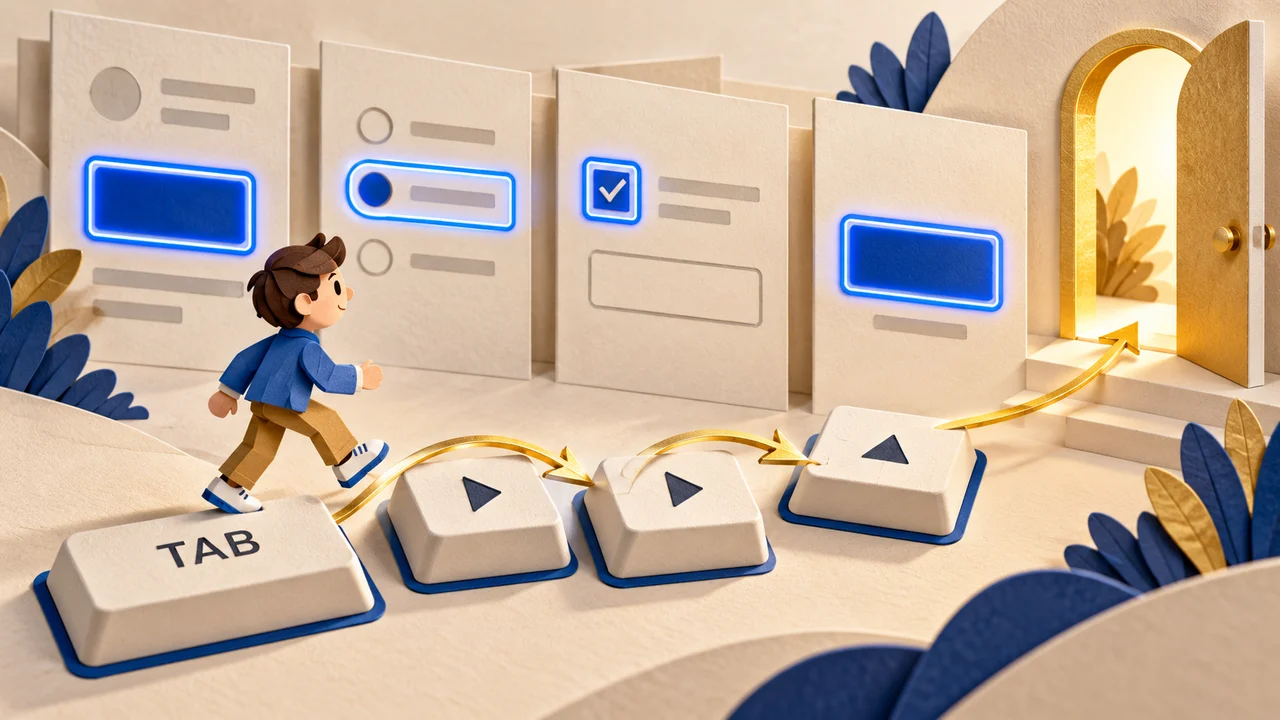
Imagine a visitor opening a studio website and moving from the homepage to services, then contact details, without touching a mouse. Can they tell where they are? Can they open the section they need? This short journey reveals whether navigation works as a usable tool, beyond its appearance in a mockup. The core principle in W3C WAI’s keyboard guidance is straightforward: interface functionality should be available through a keyboard.
Start with a clear structure
For ordinary navigation, use links grouped into lists inside a nav element, as described in WAI’s menu structure tutorial. A link takes visitors to a page; a button opens or closes a submenu. If “Services” has both an overview page and nested sections, separate those actions. This makes the component easy to explain before development: the label opens the overview, while an adjacent button reveals more choices.
Plan the navigation sequence
Tab should follow an understandable route, with Shift + Tab moving backwards. WAI’s focus order guidance emphasises preserving meaning and operability. Mark that route on the design: logo, main links, enquiry button, then the next page control. If focus unexpectedly jumps between distant areas, inspect the element order in the code, not just the visual arrangement. Agree on the intended sequence before adding animation.
Make focus easy to see
Focus identifies the element that will receive the next keyboard action. Focus Visible guidance explains that the indicator must remain visible while focus is shown. Do not remove the default outline without a clear replacement. WAI’s menu styling tutorial treats focus and the current page as different states. Design both together: an underline could identify the current section, while a distinct outline marks the keyboard position.
Open submenus deliberately
Hover must not be the only way to reveal nested links. WAI’s fly-out guidance covers keyboard operation and communicating the expanded state through aria-expanded. Ordinary navigation does not automatically need the menu role. In WAI’s disclosure navigation example, Enter and Space activate buttons; Escape closes a dropdown and returns focus to its button. Test this interaction pattern in your implementation rather than treating the example as production-ready code.
Walk through a real journey
- Open the homepage and put the mouse aside. Use Tab to find the first navigation item.
- Reach “Services”, open its submenu, and choose a page. Repeat the route backwards.
- Close and reopen the submenu. Check where focus appears after each action.
- Repeat in a narrow window and with page zoom. Leave existing notices and sticky panels visible.
Check overlapping content separately: WAI warns against fully obscuring the focused component with page content. Users must also be able to leave a component using the keyboard. An ordinary menu should not keep cycling them inside it.
Record behaviour, not impressions
A useful issue report includes the page URL, browser, window width, keystrokes, and expected result. Instead of “the menu feels awkward”, write: “Closing the submenu loses visible focus; the next Tab starts the route again.” That detail makes retesting easier. This short exercise can uncover navigation problems, but does not replace a complete accessibility evaluation or establish WCAG conformance.