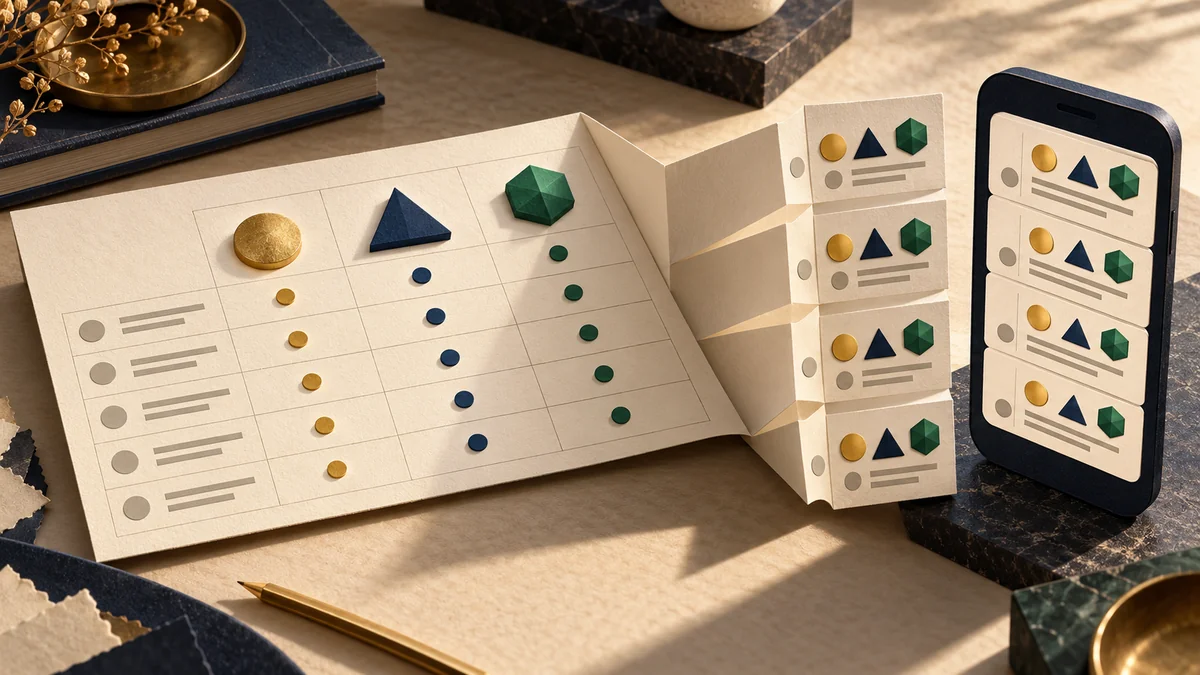
On a large screen, three offers fit comfortably side by side. On a phone, the same table can become tiny figures or a long strip whose column names have disappeared. Width is only part of the problem: readers must remember what they are comparing. Start by asking which difference they need to find, rather than by shrinking the type.
Define the task first
Imagine comparing three training programmes. The useful differences might be teaching format, duration and required prior knowledge. Put the promotional description of each programme outside the table. A cell containing conditions, exceptions and a teacher’s biography is no longer a concise comparison point. Separate facts from explanation, but do not conceal restrictions that change the meaning of an offer.
Keep labels connected to values
W3C recommends marking table headers and data cells with the appropriate HTML elements. More complex relationships may require additional attributes. Making the first row bold does not, by itself, communicate that structure to assistive technology. Give the table a clear name, state measurement units and represent unknown values consistently. An empty cell should not silently mean either “free” or “not included”.
Choose between scrolling and cards
When someone needs to compare one feature across several options, a preserved table with horizontal scrolling may work better than a long sequence of cards. Make the scrollable area apparent and test access without a touch gesture. If visitors usually read each offer separately, cards may be easier. Repeat feature labels inside every card, not just the values. This is an editorial choice, not a universal rule for every table.
Do not make the whole page behave like a table
W3C’s explanation of Reflow allows an exception for information that needs a two-dimensional layout to be understood. It is not permission to make the entire page scroll sideways. Introductory text, buttons and subsequent sections should remain comfortable on a narrow screen. Even within a table, wrap longer explanations rather than reducing them to barely legible type.
Test the decision, not just the picture
On a narrow screen, find a specific difference between two options. Then increase zoom, navigate available controls with a keyboard and check how headers are read with assistive technology. After scrolling, is it clear which option a figure belongs to? Are the facts identical on desktop and mobile? If answering requires remembering several screens, simplify the structure. A good comparison saves effort, not merely space.